Changing Your Team Membership
To change to Team membership, follow these steps:
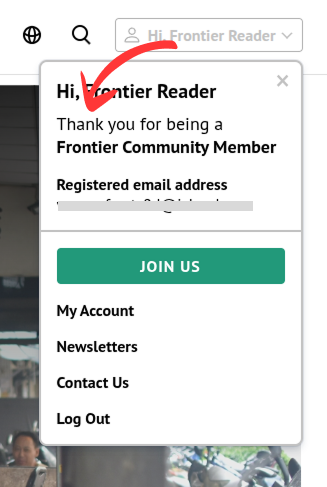
- Go to the membership levels page by either loading this url or clicking “Hi, ***” button at the top right side of the navigation bar and clicking the GREEN button.
- Scroll down and you will see “Team Membership” section. Click “Learn More” button.
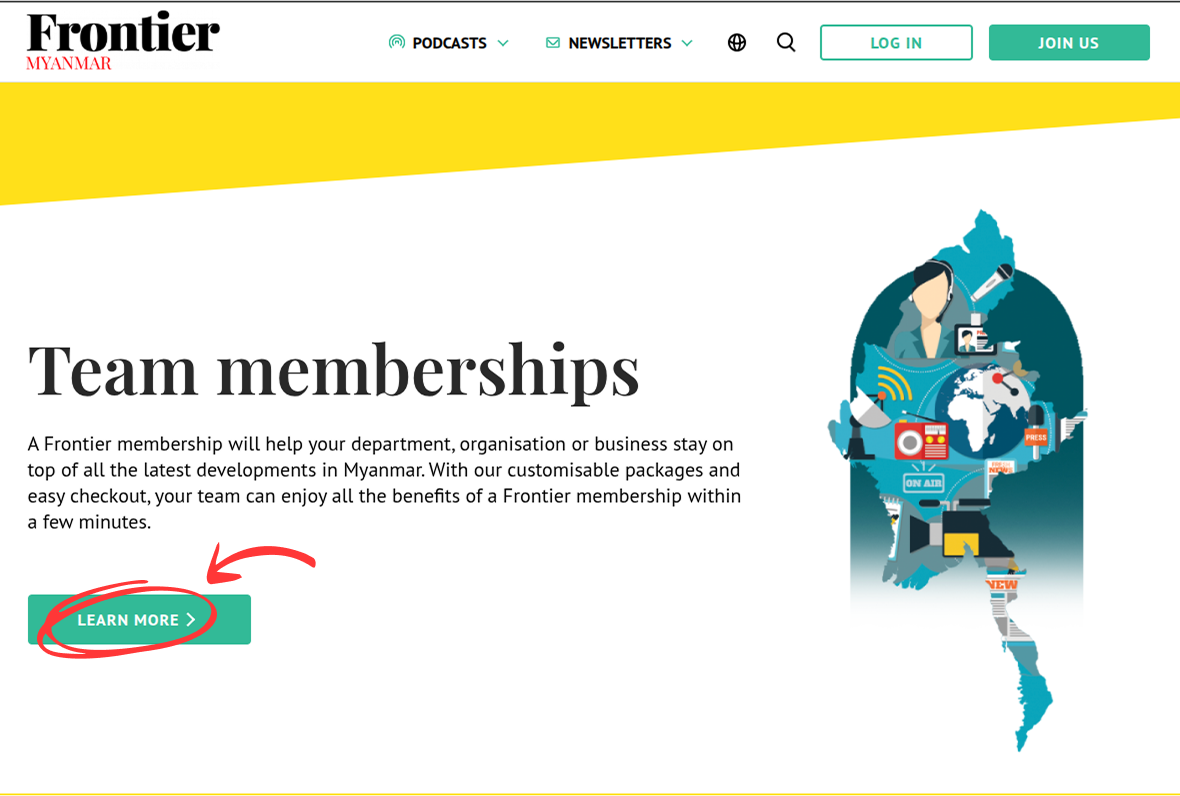
- You will be redirected to “Team membership” page.
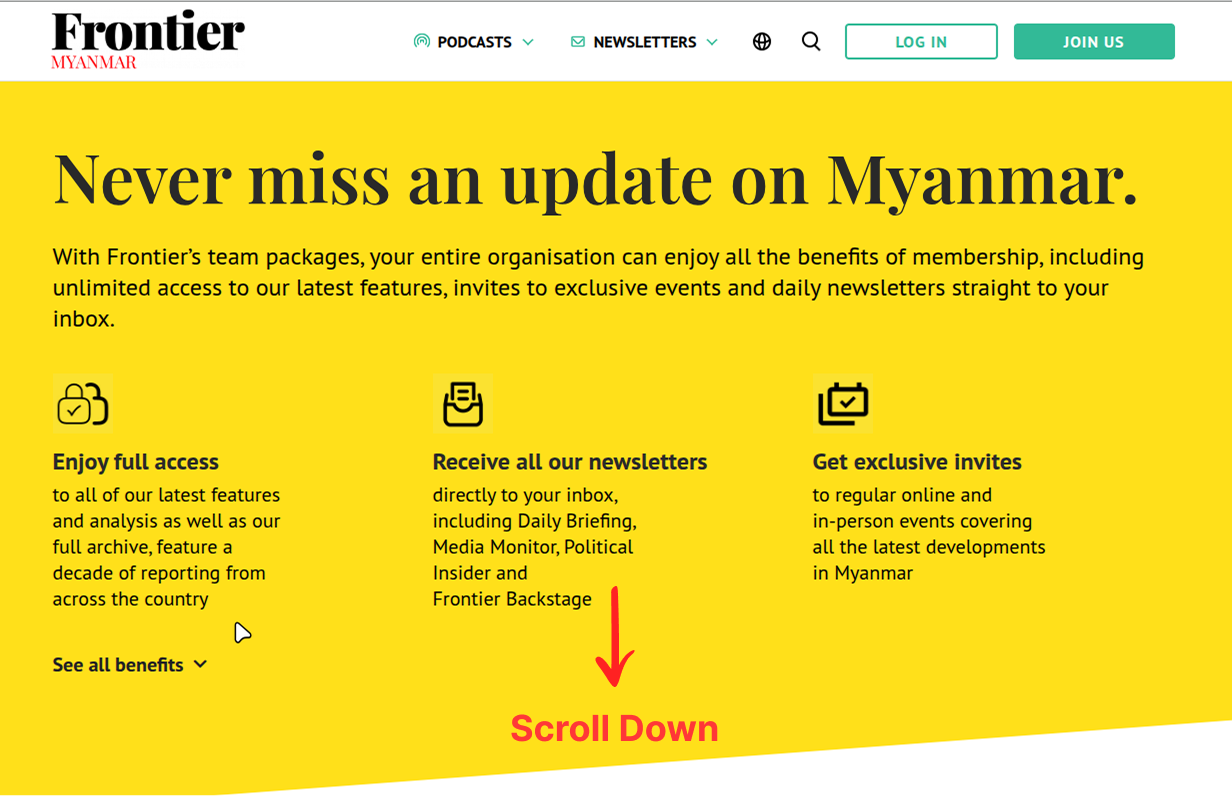
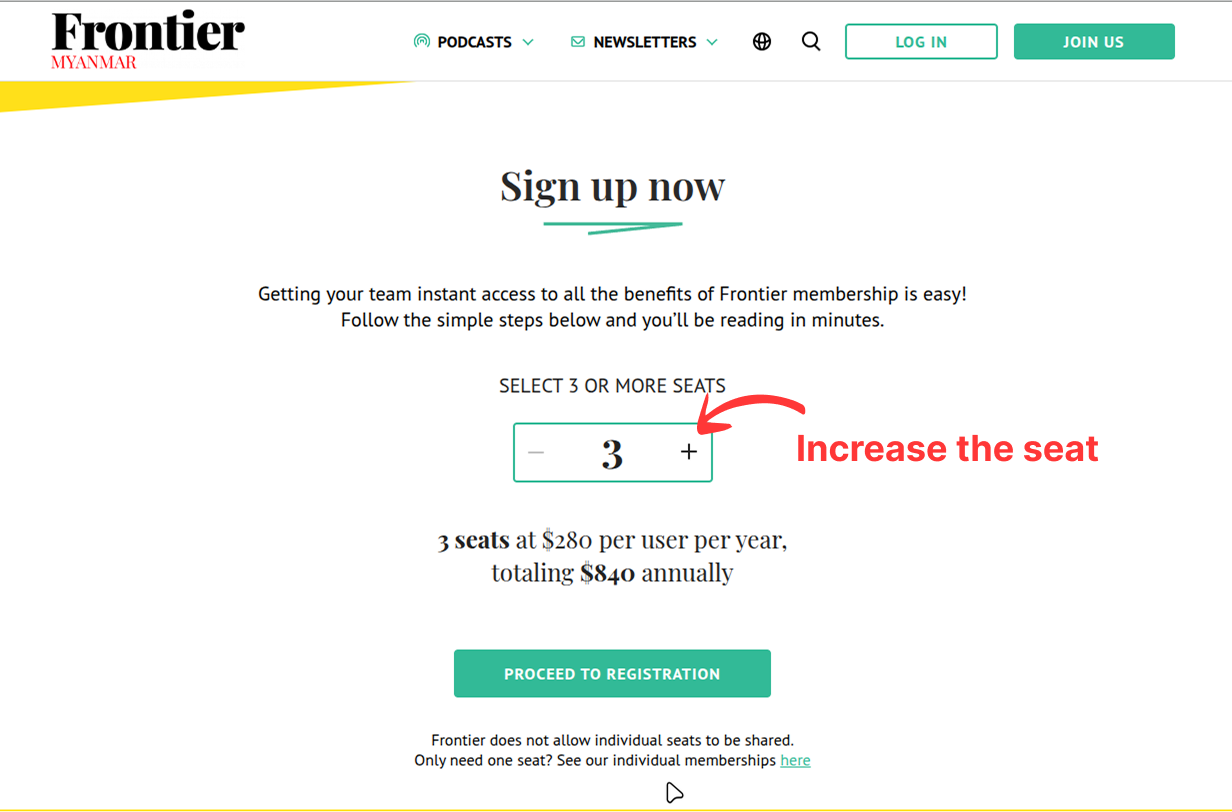
- Then, scroll down and adjust the number of seats you would like to have. Once you are happy with the seats, click “Proceed to Registration” button at the bottom.
- In the checkout page, enter required information and click “Submit And Check Out”

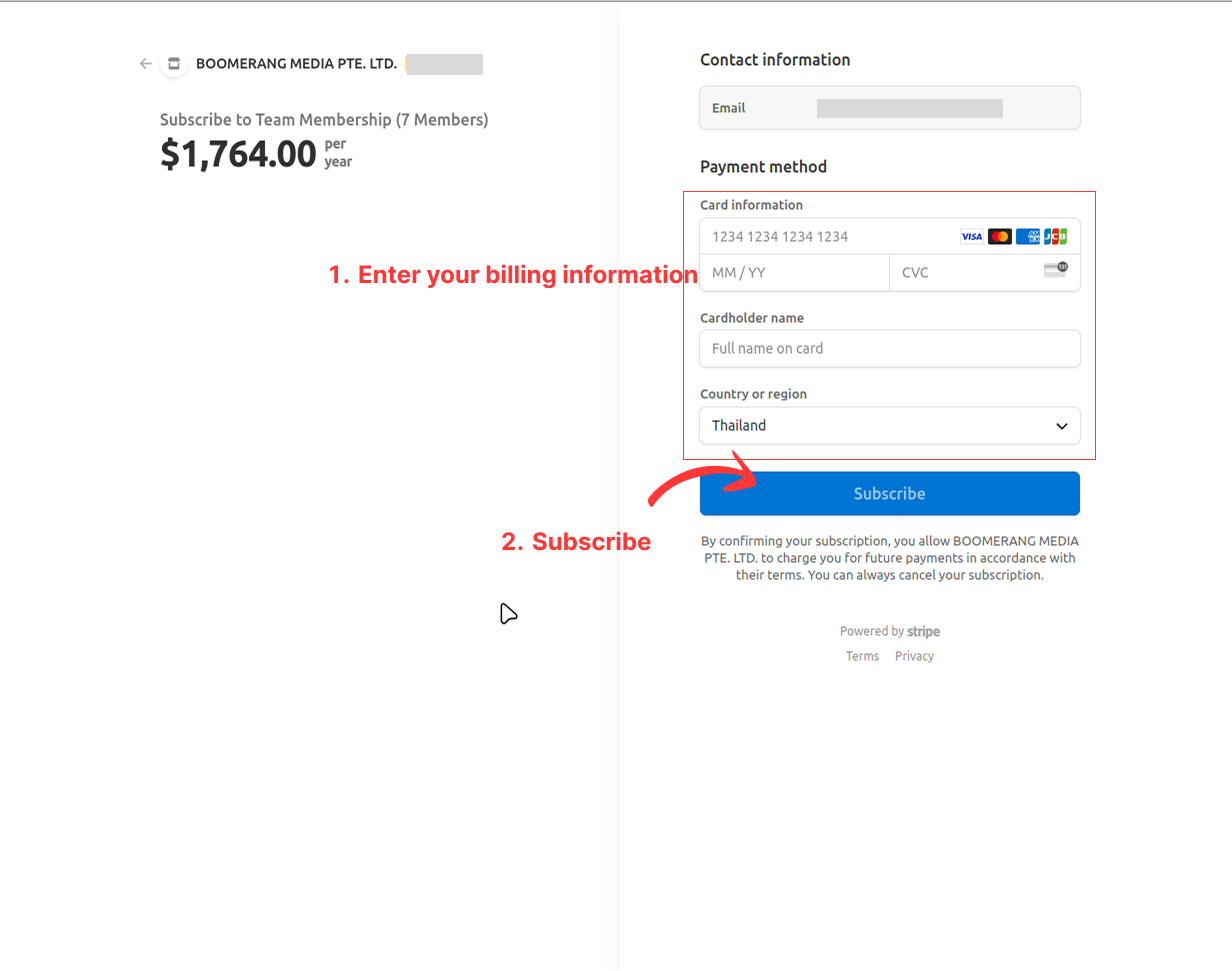
- You will be redirected to the Stripe checkout page where you can re-enter your billing information. If you have already been a paying customer, you might not need to enter your billing information again.
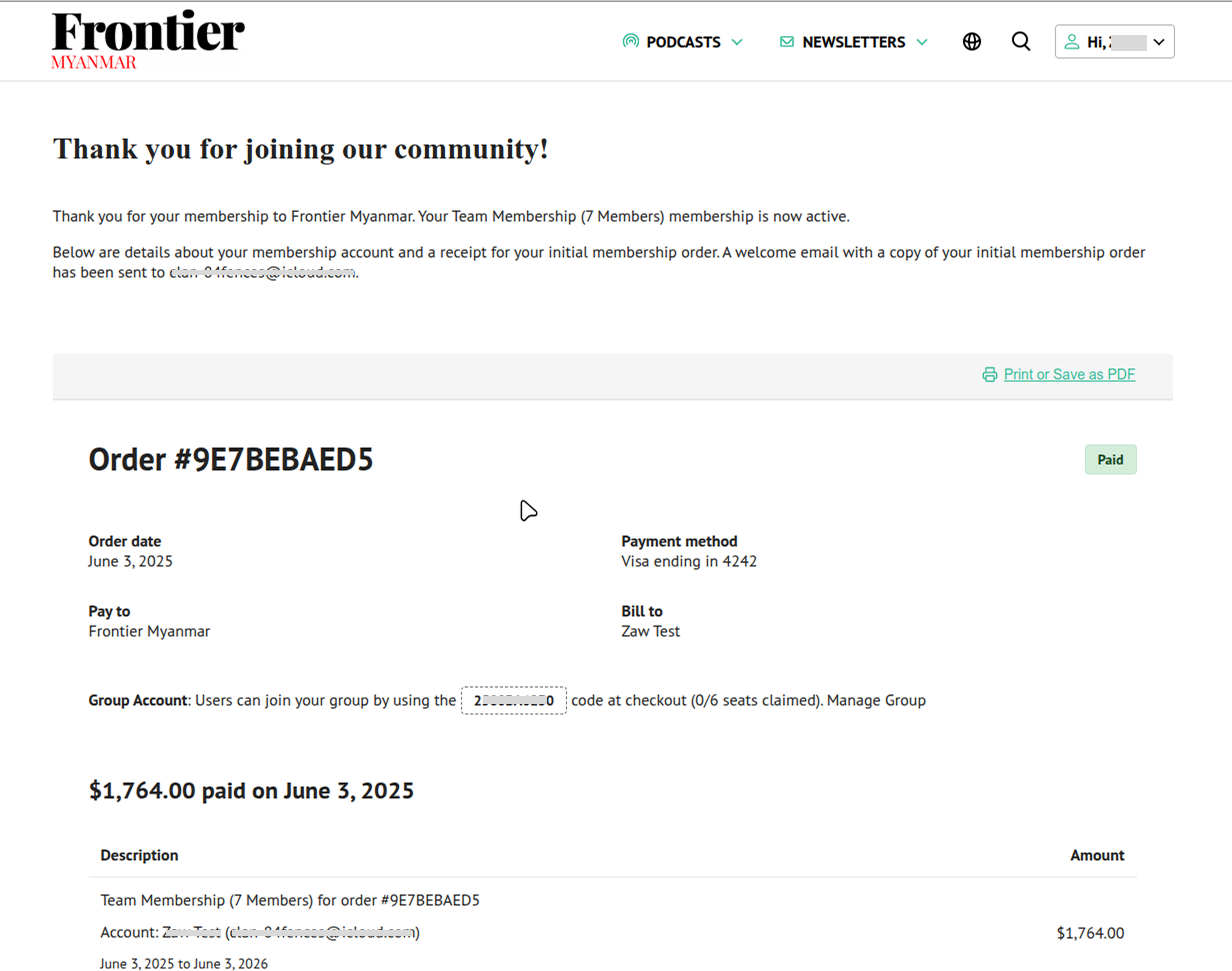
- After successfully completing the checkout process, you will be redirected to your Frontier account page.
Note: Please be aware that any membership level change will result in prorated charges.